
 For Boys
 For Girls
 For Kids
 Top Games
 My Games
 Top Games
 My Games


FlipaClip Game Online

Description
The onion skin tool in FlipaClip does something most beginners don’t expect the first time they turn it on: it doesn’t just show the frame before yours, it lets you tint past and future frames in different colors so your eye can tell which direction the motion is heading before you’ve drawn a single new line.
What Actually Happens When You Draw on FlipaClip’s Timeline
FlipaClip is built around a straightforward idea — draw one frame, add another, and let the Timeline stitch them into motion. You sketch directly onto a canvas, arrange frames along the Timeline strip at the bottom of the screen, and scrub back and forth to preview the loop. Pressure-sensitive brushes respond to stylus input from tools like the Apple Pencil, Samsung S Pen, or SonarPen, which matters more than it sounds like once you’re trying to draw a line that thickens naturally instead of looking uniform and stiff.
Beginners almost always make the same mistake early on: drawing a fully rendered first frame before they’ve locked down the timing. Experienced FlipaClip users tend to work rough first — quick key poses, then in-betweens filled in once the motion actually reads correctly on the Timeline. Skipping that step is the single biggest reason first animations look stiff even when the individual drawings are solid.
Newcomers to frame-by-frame work specifically benefit from starting with short loops rather than long sequences, since a four-frame walk cycle exposes timing problems immediately in a way a thirty-second scene does not.
Onion Skin: Seeing the Frame Before and After
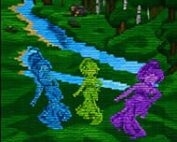
Onion Skin is the feature every FlipaClip tutorial leads with, and for good reason. Toggling it on shows adjacent frames semi-transparently — frames before the current one can be colored red, frames after colored green — so you can judge spacing and arcs without flipping back and forth constantly. The advanced settings let you adjust how many frames before and after are visible and how strong the transparency is, plus a looping option that shows the very first frame as a ghost image while you’re animating the last one, which is genuinely useful for anyone building a seamless loop.
Once you’ve animated more than a handful of projects, Onion Skin stops feeling like a beginner crutch and starts feeling like the only sane way to keep spacing consistent across a long sequence.
Layers, Stacks, and FlipaClip’s Free-Tier Ceiling
Free accounts get three layers per frame, enough to separate a character from a background but not much beyond that; the Pro tier bumps this to ten. Layers matter more than people expect walking in — putting a background on its own layer means you’re not redrawing it every single frame, and separating foreground effects keeps glow or blur adjustments from bleeding into the character art underneath.
- Stacks let you drag one project on top of another to build folders for series or sequels.
- Frames Viewer lets you select multiple frames at once to duplicate, reorder, or delete in a batch.
- Magic Cut, an AI-assisted tool, isolates a subject from an imported photo or video for rotoscoping.
Audio import supports up to six free tracks, with syncing precise enough to line dialogue up frame-by-frame rather than just eyeballing it against the waveform.
Where FlipaClip’s Reputation Gets Complicated
Inside the animation-meme community specifically, FlipaClip carries a slightly split reputation. It’s genuinely one of the more accessible entry points into frame-by-frame animation on a phone, and with more than 80 million monthly users, a huge share of that community’s beginner work gets made in it. That volume cuts both ways — some experienced animators treat FlipaClip output as a signal of inexperience, while others go out of their way to prove the app can produce genuinely polished work when someone puts in the hours. Recent updates fixed a launch-crash bug affecting iOS 15 through 17, which had been a real point of frustration for creators mid-project.
How does Onion Skin work in FlipaClip?
It overlays the frames immediately before and after your current one as semi-transparent ghost images, optionally colored red and green, so you can judge motion and spacing without leaving the Timeline.
How many layers does FlipaClip give you for free?
Free accounts get up to three layers per frame; upgrading to Pro raises that ceiling to ten layers.
Can you export finished animations from FlipaClip?
Yes — completed projects can be exported as video or shared directly to platforms like YouTube, TikTok, and Instagram, often tagged with #MadeWithFlipaClip by the wider community.
Whether you’re building a four-frame loop for a meme or a full scene with layered backgrounds and synced audio, FlipaClip’s Timeline and Onion Skin combination is still what makes the difference between drawings that sit still and drawings that actually move.

 25
25
 For Boys
  For Girls





























 2696
2696


